
Paper has a way of taking over a small office. Invoices stack up next to the printer, filing cabinets fill faster than anyone can sort them, and finding last year’s contract means opening three drawers and a storage box. Going paperless promises an office where everything is searchable in seconds, but many small businesses try it, scan a few folders, and drift back to paper within a month.
The difference between success and a stalled project is usually the plan. This guide explains how to go paperless in a small office in practical stages: what to scan and what to keep, the equipment and software you actually need, how to name and organize files so people can find them, how to stop new paper at the source, and how to dispose of the originals safely once they are digitized.

Set a realistic goal: less paper, not zero paper
Very few businesses become completely paperless, and that is fine. Some documents are better kept as originals, such as signed legal agreements, certain notarized documents, property titles and anything a law, lender or agency requires in original form. The real goal is to stop paper from being the main way you store and find information.
Define success in measurable terms, such as:
- All new incoming documents are digital or scanned within a week.
- Active client and vendor files live in one shared digital system.
- Filing cabinets shrink from four to one within six months.
Step 1: Sort what you have into four groups
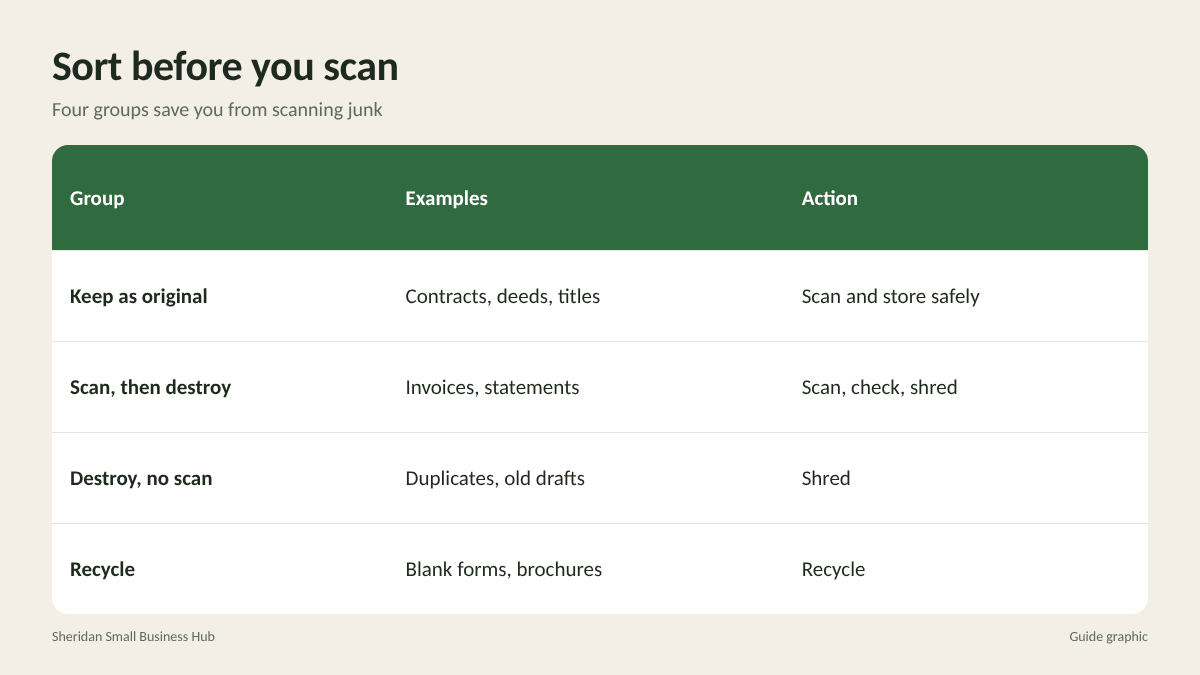
Before scanning anything, go through your paper and sort it. This saves you from scanning documents you should simply destroy.
- Keep as original: Formation documents, signed contracts, deeds, titles, certain tax documents and anything your attorney or accountant advises keeping in original form. Scan these too, for easy reference, but store the originals securely.
- Scan, then destroy: Routine invoices, receipts, statements, correspondence and closed project files that you must keep for a period but do not need in paper form. Confirm with your accountant that digital copies are acceptable for your records.
- Destroy without scanning: Duplicates, outdated drafts, old marketing materials and records that are past their retention period.
- Recycle: Paper with no sensitive information at all, such as blank forms or generic brochures.
When in doubt about retention, ask your accountant or attorney. The rules differ by document type and industry.
Step 2: Get the right tools
Scanner
A desktop document scanner with an automatic document feeder and duplex (two-sided) scanning is the workhorse of any paperless project. It can feed a stack of pages in one pass, which a flatbed scanner or phone app cannot match for volume. Phone scanning apps are still useful for receipts on the go.
Storage
Choose one cloud storage or document management system for the whole business. Look for access controls by user or folder, version history, search that reads text inside scanned documents (OCR), and automatic backups.
OCR
Optical character recognition turns scanned images into searchable text. Without it, a scanned file is just a picture, and you are back to browsing folders. Most modern scanners and storage tools include OCR.
Step 3: Create a folder structure and naming rules
A digital mess is no better than a paper one. Agree on structure before you scan the first page.
Folder structure
Keep it shallow, with no more than three or four levels. A common pattern:
- Clients > Client name > Year
- Vendors > Vendor name > Year
- Finance > Year > Bank statements / Receipts / Tax
- HR > Employees (restricted access)
- Company > Formation, Contracts, Insurance, Licenses
File naming
Use a consistent format so files sort correctly and are easy to search: date first, in YYYY-MM-DD order, then the party, then the document type. For example: 2026-03-14_AcmeSupply_Invoice-4471.pdf. Write the rule down and share it with everyone who saves files.
Step 4: Scan in batches, starting with active files
Do not try to scan years of archives in a weekend. Work in this order:
- New documents first. From day one, every new document gets scanned and filed digitally. This stops the pile from growing.
- Active files next. Current clients, open projects and this year’s financial records.
- Archives last. Older records you are required to keep but rarely open. Schedule a set amount per week.
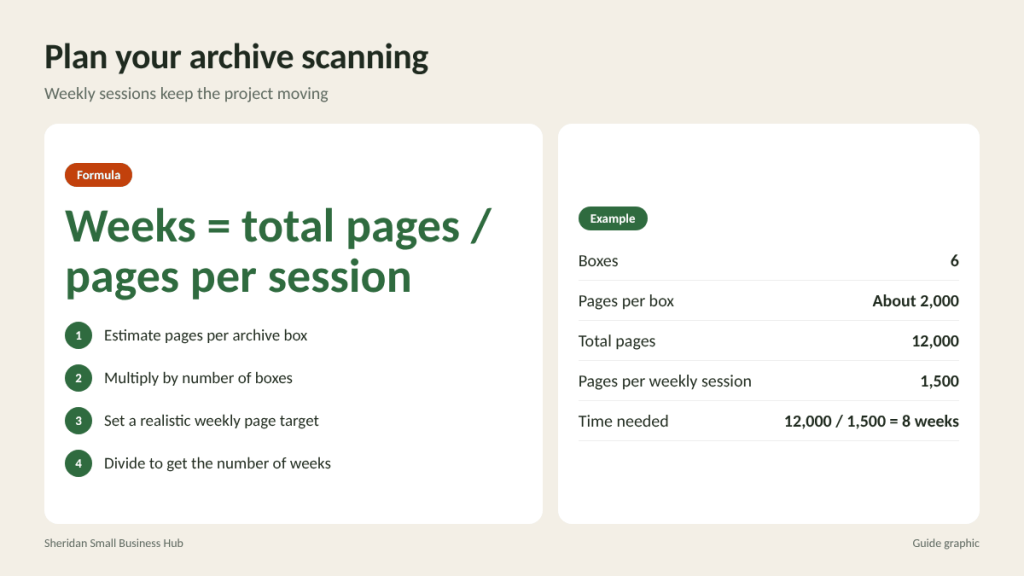
Here is a simple way to plan the archive. Suppose you have 6 boxes of old records with roughly 2,000 pages each, or 12,000 pages in total. If you can scan 1,500 pages per weekly session, the archive takes 12,000 / 1,500 = 8 weeks. Breaking it into weekly sessions keeps the project moving without disrupting daily work. If that pace is not realistic, consider using a scanning service for the archive and handling new documents yourself.
Quality checks
Spot-check every batch. Confirm page counts match, both sides scanned where needed, text is readable and OCR works. Scanning at around 300 dpi is a common standard for text documents that stay legible and searchable.
Step 5: Stop paper at the source
Scanning existing paper is only half the job. If new paper keeps arriving, the project never ends.
- Ask vendors and banks for electronic statements and invoices.
- Send invoices and receipts to customers by email from your accounting software.
- Use e-signatures for documents that do not require a wet signature or notarization.
- Use digital forms for intake, applications and time-off requests.
- Change printer defaults to double-sided and set a “print only when needed” habit.
- Route business mail to one person who scans and files it the same day.

Step 6: Dispose of originals securely
Once documents are scanned, checked and backed up, the paper originals in your “scan, then destroy” group need to go. This is where many businesses create a security risk: tossing documents into recycling bins that anyone can access.
- Shred anything with personal or financial information, such as names with account numbers, Social Security numbers, tax IDs, bank details, medical information or signatures.
- Use a cross-cut or micro-cut shredder for small volumes, or a professional shredding service for large batches and archives.
- Keep a locked bin for documents waiting to be shredded.
- Log large disposals with the date, a description of what was destroyed and who handled it.
Step 7: Protect the digital files
Digital records bring different risks. A filing cabinet can only be opened by someone standing in your office; a cloud folder can be opened by anyone with the password. Build these protections in from the start:
- Strong, unique passwords and multi-factor authentication on your storage account and email.
- Access by role. Staff see the folders they need for their job, and HR and finance folders stay restricted.
- Backups in a second location, tested occasionally by restoring a file to confirm the backup works.
- An offboarding checklist that removes access the same day someone leaves.
- A yearly cleanup where you delete digital files that have passed their retention period, just as you would shred paper.
Finally, write the whole system on one page: what gets scanned, where it goes, how files are named and who is responsible. New staff can follow it from day one, and the system survives busy seasons.
Frequently asked questions
Are scanned copies legally valid?
For many routine business records, digital copies are accepted, but some documents should be kept in original form. Ask your accountant or attorney which records you must keep as originals.
What is the best scanner for a small office?
A desktop document scanner with an automatic feeder, two-sided scanning and built-in OCR suits most small offices better than a flatbed or an all-in-one printer.
How long does it take to go paperless?
Stopping new paper can happen in a few weeks. Digitizing old archives depends on volume, so plan weekly scanning sessions or use a scanning service.
Can I recycle documents after scanning them?
Only if they contain no sensitive information. Shred anything with personal, financial, health or account details.
Boxes of scanned originals to destroy?
Once your records are digitized, get rid of the paper safely. Walk-in document shredding at The Postal Spot in Houston handles everything from a few folders to several boxes.